
AI Email Management in 2026: A Practical Workflow for Busy Professionals
Email is still one of the biggest sources of hidden work in a modern office. A message arrives, you open it, decide what it means, search for context, draft a reply, create a task, update a calendar, and then try to remember whether anyone followed up. Do that dozens of times a day and your inbox becomes a second job.
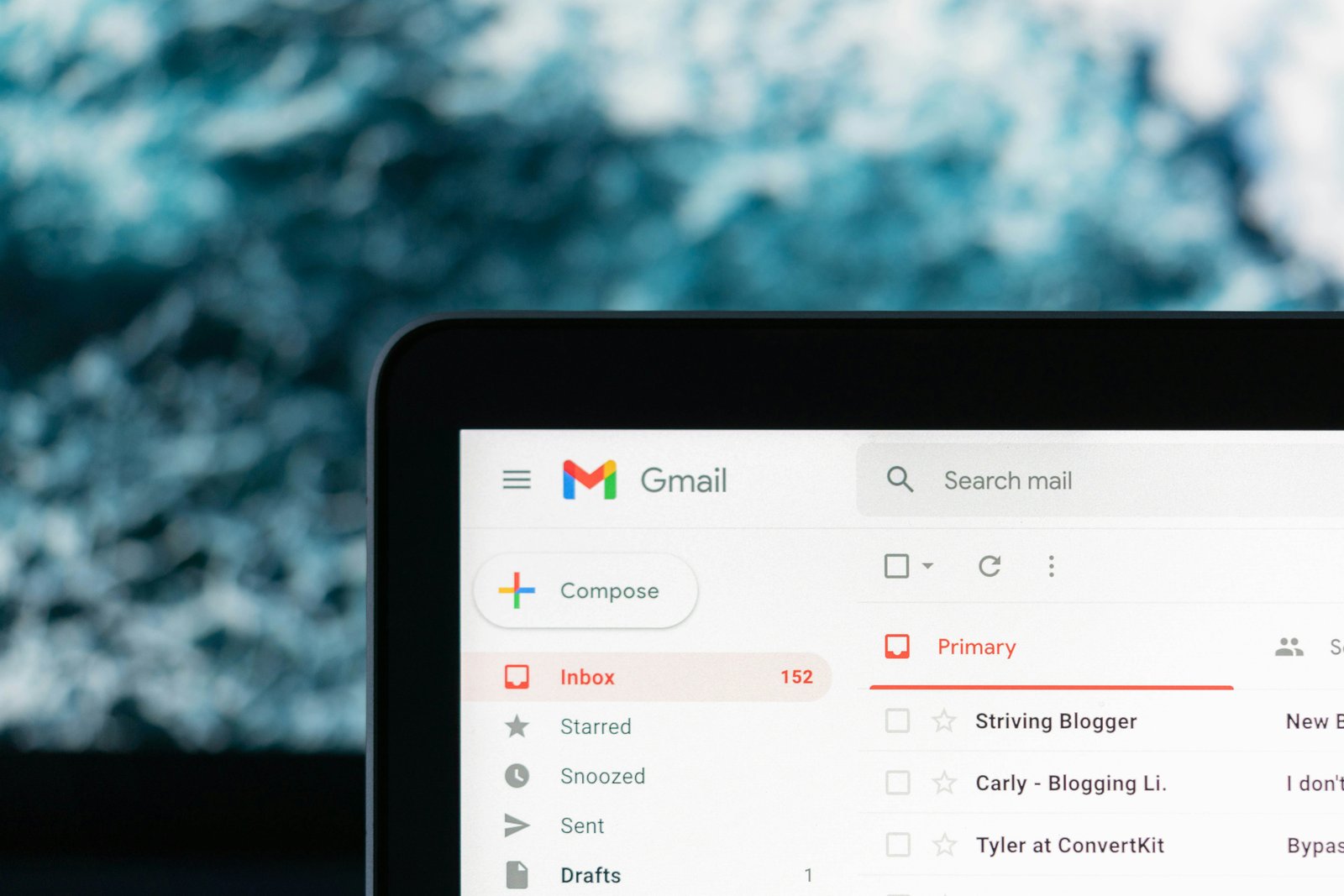
AI email management can reduce that workload, but the best results do not come from handing your entire inbox to an autonomous system. They come from building a clear workflow in which AI handles repetitive reading, sorting, drafting, and summarizing while you keep control of decisions that affect customers, money, confidential data, or commitments.
This guide is designed for professionals and small teams in the United States who want a practical system they can use in 2026. It focuses on useful habits rather than hype, and it also explains where privacy, verification, and human review belong in the process.
What AI Email Management Actually Means
AI email management is the use of an AI assistant, email client, or automation platform to reduce the manual steps involved in handling messages. Depending on the software you use, AI may help summarize long threads, identify action items, draft responses, extract dates, classify messages, translate text, search past conversations, or prepare follow-up reminders.
The important word is help. A good email system does not try to make every decision automatically. It separates low-risk work from high-impact work. That distinction makes the workflow faster without turning your inbox into a black box.
Common tasks AI can assist with
- Summarizing long email threads into a few key points.
- Extracting deadlines, names, meeting times, and requested actions.
- Grouping messages by urgency or topic.
- Drafting routine replies in your preferred tone.
- Turning messages into task lists or follow-up notes.
- Comparing a new message with earlier context.
- Creating a short daily inbox digest.
If you are already exploring broader workplace automation, our guide to the best AI productivity tools in 2026 explains how email assistants fit into a larger productivity stack.
Start With an Inbox Policy Before You Add AI
The fastest way to create a bad automation is to automate a messy process. Before connecting an AI assistant, decide how you want email to work. A simple policy can be more valuable than another app because it gives the AI clear boundaries.
Define five message classes
Most professional inboxes can be handled with five practical classes:
- Urgent and important: customer problems, time-sensitive approvals, security alerts, legal notices, or messages from key people.
- Action required: messages that need a reply, document, decision, payment, or task.
- Waiting: conversations where you already replied and need someone else to act.
- Reference: useful information that does not require immediate action.
- Low value: newsletters, promotions, automated notifications, and messages you rarely need.
You do not need perfect classification. The goal is to keep important messages visible and make routine mail easier to process.
A Practical AI Email Workflow You Can Copy
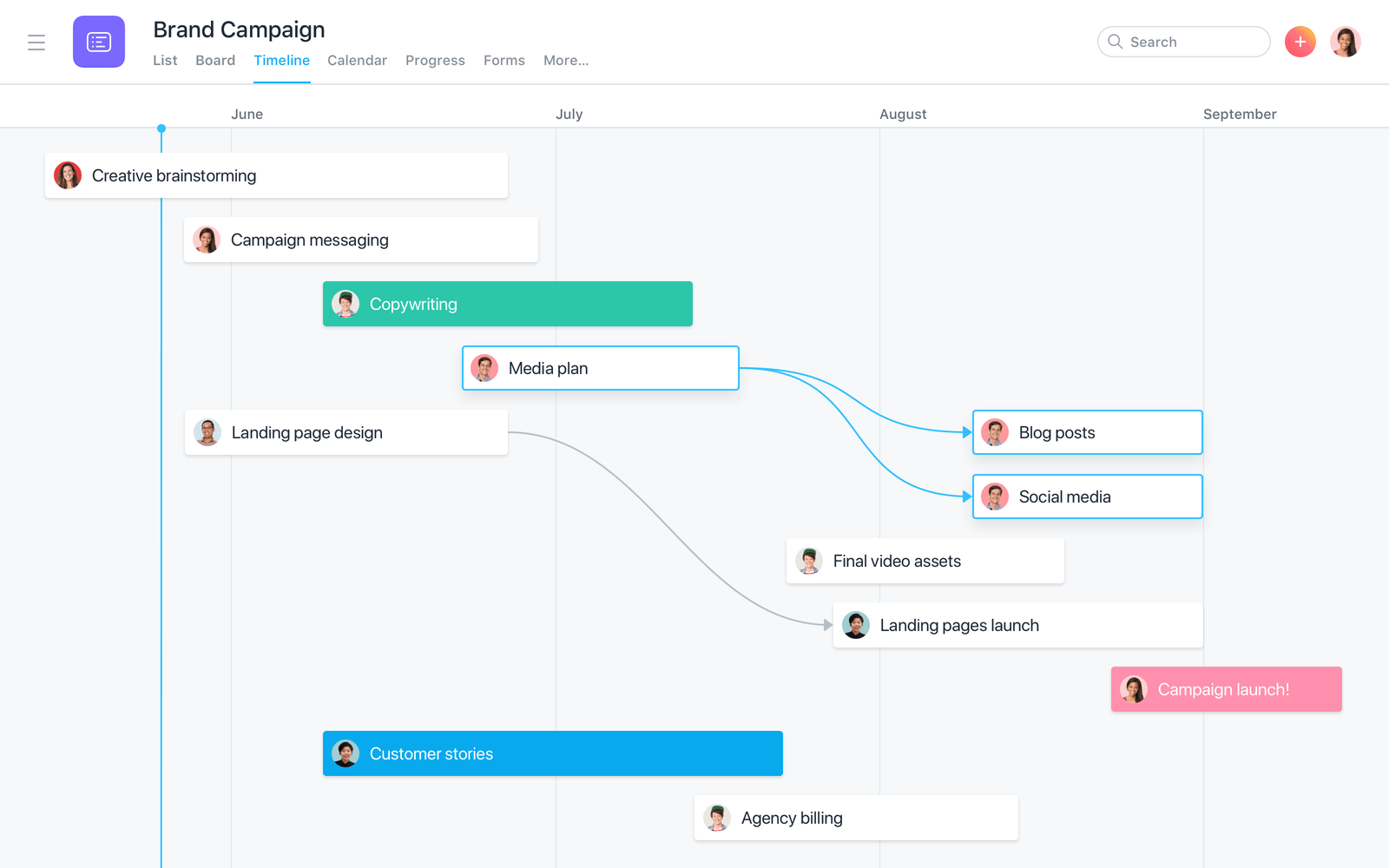
The following workflow works whether you use a built-in assistant in your email platform or a separate AI tool connected through approved integrations. Adjust the exact buttons to your software, but keep the decision structure.
Step 1: Let AI summarize before you read every line
For long threads, ask for a summary with four fields: current situation, decisions already made, open questions, and next action. This is more useful than a generic summary because it tells you what needs attention.
A good output might say that a client approved the design, the delivery date is still unresolved, two people are waiting for a cost estimate, and you need to respond before Friday. You can then scan the original thread for details instead of starting from the first message.
Step 2: Extract actions into a separate task system
An inbox is a poor task manager because new mail pushes old commitments out of sight. When an email contains a real action, move that action into the place where you manage work. Include the task, owner, due date, and a link or reference to the original conversation.
AI can help extract these fields, but review them before they become commitments. Dates are especially important because natural language can be ambiguous. “Next Friday” can mean different dates depending on when the message was written.
Step 3: Draft replies, but do not blindly send them
AI is particularly useful for first drafts. Give it the purpose of the reply, the facts that must be included, the desired tone, and anything it must not promise. Then edit the draft like you would edit work from a junior assistant.
For routine messages such as scheduling, acknowledgments, status updates, and simple follow-ups, this can save significant typing. For sensitive messages, the draft should be treated as preparation rather than a final answer.
Step 4: Create a waiting-for list
One of the easiest ways to lose track of work is to send a message and assume you will remember it. Instead, keep a “waiting for” list. An automation can record when you sent a request and remind you if no response arrives after a reasonable period.
This is especially useful for invoices, proposals, approvals, vendor questions, applications, and customer follow-ups. The reminder should surface the conversation, not send an aggressive follow-up automatically.
Step 5: End the day with a short digest
A daily AI inbox digest can answer five questions: What needs action? What is overdue? What is waiting on someone else? What important information arrived? What can safely wait until tomorrow?
Keep the digest short. The purpose is to reduce scanning, not create another long document that you have to read.
Use a Human-in-the-Loop Rule for High-Impact Email
AI becomes risky when a draft can create a commitment you did not intend. A simple human-in-the-loop rule solves much of this problem: the higher the impact, the stronger the review.
| Email type | AI role | Human review |
|---|---|---|
| Routine scheduling | Summarize and draft | Quick review before send |
| Internal status update | Draft from approved facts | Check accuracy and tone |
| Customer complaint | Summarize and suggest response | Full review |
| Pricing or contract discussion | Organize facts only | Full review and approval |
| Legal, HR, security, or financial issue | Assist with organization | Qualified human decides |
This principle is consistent with the broader idea of risk-based AI management. The U.S. National Institute of Standards and Technology provides a voluntary AI Risk Management Framework and a Generative AI Profile that organizations can use when thinking about AI risks, controls, and trustworthy use.
Privacy: Decide What Your AI Assistant Is Allowed to Read
Email often contains more sensitive information than people realize: customer data, payment discussions, employee details, private documents, account numbers, addresses, internal strategy, and links to systems that should not be exposed casually. Before enabling an AI integration, review what data it can access and what your organization allows.
Use least-privilege access
An assistant that only needs to summarize a specific mailbox should not automatically receive access to every shared inbox, cloud drive, calendar, and customer database. Give each tool the minimum permissions required for the workflow you actually use.
Keep secrets out of prompts
Do not paste passwords, API keys, authentication codes, private keys, or other credentials into an AI prompt. If a message contains highly sensitive information, use your organization’s approved tools and policies rather than a convenient personal account.
Check business data controls
If you use a commercial AI service for work, read its current business privacy and data-control documentation before connecting confidential information. Policies and product settings can change, so rely on the provider’s official documentation rather than an old screenshot or social media claim.
How to Write Better Prompts for Email Drafting
Vague instructions produce generic email. A useful prompt includes context, goal, facts, tone, length, and constraints. You do not need a complicated formula.
A simple five-part structure
- Context: Who is this person and what is the situation?
- Goal: What should the email accomplish?
- Facts: Which details must be included?
- Tone: Friendly, concise, formal, calm, direct, or apologetic?
- Limits: What must the draft avoid promising or assuming?
For example, instead of asking “reply to this client,” you can ask for a concise reply that acknowledges the delay, confirms that the revised file will be reviewed today, avoids promising a final completion date, and ends by asking whether the client has a hard deadline. That gives the assistant a clear job without giving it authority to invent business commitments.
Build Reusable Templates for Repeated Situations
The biggest productivity gains often come from repeated work. If you send the same kind of message every week, create a template that AI can customize from approved facts.
Useful templates include:
- New customer acknowledgment.
- Meeting follow-up with action items.
- Project status update.
- Invoice reminder.
- Request for missing information.
- Support escalation.
- Proposal follow-up.
- Out-of-office handoff.
Store the template together with rules about what information is required before it can be sent. This reduces hallucination risk because the AI has less room to fill gaps with assumptions.
Connect Email to the Rest of Your Productivity System
Email automation becomes more valuable when it connects to the systems where work is actually completed. A customer request might become a task. A confirmed meeting might become a calendar event. An approved attachment might be stored in the correct project folder. A support escalation might create a ticket.
This is where AI agents and workflow automation start to overlap. If you want to understand the broader model, see our guides to how AI agents are changing work and the best AI agent tools in 2026.
Do not automate a chain you cannot audit
If one email can trigger several actions, make sure you can see what happened. A reliable workflow should leave a record of the message, extracted fields, action taken, and any errors. Silent automation is difficult to trust because you may not discover a mistake until a customer or coworker notices it.
Common AI Email Management Mistakes
- Auto-sending every draft: speed is not worth an accidental promise or wrong recipient.
- Giving the tool too much access: convenience should not replace permission discipline.
- Keeping tasks inside email: important actions need a reliable task system.
- Trusting summaries without checking critical facts: always verify high-impact details in the original message.
- Creating too many labels: a simple classification system is easier to maintain.
- Automating before cleaning the inbox process: bad processes become faster bad processes.
A 30-Minute Setup Checklist
- Choose your five inbox classes.
- Identify which messages are safe for AI drafting.
- List categories that always require human review.
- Connect only the minimum services needed.
- Create two or three reusable reply templates.
- Set up a waiting-for reminder method.
- Create a daily action digest.
- Test the workflow with non-sensitive messages first.
- Check that tasks and deadlines move into your real task system.
- Review the setup after one week and remove anything that creates more work than it saves.
Frequently Asked Questions
Can AI completely manage my email inbox?
Technically, some tools can automate large parts of email handling, but full autonomy is rarely the best starting point. Use AI first for summarizing, classification, extraction, and drafting. Keep human approval for messages that create commitments, affect customers, involve money, or contain sensitive information.
What is the best AI email management workflow for a small business?
A simple system works best: summarize long threads, classify messages, extract tasks into a task manager, draft routine replies, maintain a waiting-for list, and produce a daily digest. Add automation only after the basic workflow is reliable.
Is it safe to connect an AI tool to work email?
Safety depends on the provider, account type, permissions, organizational policy, and the data in your mailbox. Review official privacy documentation and use least-privilege access. Sensitive organizations should use approved business tools and governance rather than personal AI accounts.
Does AI email automation save time?
It can, especially for repetitive reading and drafting, but measure the full workflow. If you spend almost as long correcting drafts or checking automation as you previously spent doing the task, simplify the system.
Conclusion: Make AI the Inbox Assistant, Not the Inbox Owner
The most useful AI email management system is not the one that makes the most decisions on its own. It is the one that reliably removes low-value steps while keeping you informed about important work.
Start with summaries, action extraction, draft replies, and follow-up tracking. Add stronger automation only after you understand the risks and can audit what the system does. For busy professionals, that approach delivers the practical benefit of AI without giving up the judgment, context, and responsibility that still belong to a person.