
AI Video Editing Software in 2026: A Beginner’s Guide to Faster Editing
Video editing used to require learning a long list of manual tools before you could produce a clean result. In 2026, many editing apps can transcribe speech, generate captions, remove pauses, reframe clips for different platforms, clean audio, search footage, and create rough cuts with AI assistance.
That does not mean the software can replace taste, pacing, storytelling, or judgment. The best AI video editing software helps beginners remove repetitive work so they can spend more time deciding what the video should communicate.
This guide is written for U.S. creators, small businesses, educators, freelancers, and beginners who want to understand the most useful AI editing features without buying a tool based only on a flashy demo.
What AI Video Editing Can Do

AI features now appear across desktop editors, browser-based tools, mobile apps, and professional creative suites. Common functions include:
- Automatic transcription.
- Caption generation.
- Text-based editing.
- Silence and filler-word detection.
- Background removal.
- Audio cleanup.
- Automatic reframing for vertical or square video.
- Scene detection.
- Search by spoken words or visual content.
- Rough-cut suggestions.
These features are most valuable when they solve a repeated editing task. You do not need every AI feature in one app.
Start With the Type of Video You Make
Talking-head and educational videos
Transcription, text-based editing, captions, silence removal, and audio cleanup are especially valuable.
Social media clips
Automatic reframing, caption styles, templates, and quick export formats matter more.
Screen recordings and tutorials
Look for cursor emphasis, zoom effects, transcript-based navigation, background cleanup, and easy annotation.
Long-form YouTube or documentary work
Media organization, proxy workflows, multicam support, color tools, audio controls, and reliable project management matter as much as AI.
Business marketing
Brand templates, collaboration, review links, captions, and easy resizing can save more time than advanced cinematic features.
AI Feature 1: Text-Based Editing
Text-based editing turns the transcript into an editing interface. Delete a sentence from the transcript and the corresponding video segment is removed or marked for removal.
This can be extremely fast for interviews, podcasts, webinars, training, and talking-head content because you can edit the structure by reading instead of scrubbing through the timeline repeatedly.
What to check
- Transcript accuracy.
- Speaker detection.
- Ability to restore deleted sections.
- How edits translate to the timeline.
- Support for filler-word or silence review.
AI Feature 2: Automatic Captions
Captions improve accessibility and are important for viewers who watch without sound. AI can create a first draft quickly, but names, technical terms, numbers, and punctuation still need review.
For accessibility guidance, the W3C Web Accessibility Initiative provides useful information about captions and multimedia accessibility.
Do not publish unreviewed captions
A small transcription error can change the meaning of a sentence. Review the final caption track, especially for educational, medical, legal, or technical content.
AI Feature 3: Audio Cleanup
AI audio tools can reduce steady background noise, improve voice clarity, and balance speech. These tools are helpful when recording conditions are imperfect.
They cannot always rescue distorted, clipped, or extremely noisy audio. Good microphone placement and recording technique still matter.
AI Feature 4: Silence and Filler-Word Removal
Some editors can detect long pauses and filler words. This is useful for rough cuts, but automatic removal can make speech sound unnatural if applied too aggressively.
Use it as a review tool. Let the software highlight possible edits, then listen before accepting them.
AI Feature 5: Automatic Reframing
A landscape video may need to become vertical for short-form platforms. AI reframing can follow a speaker or subject and create a 9:16 crop automatically.
Check every reframed clip
Automatic tracking can fail when there are multiple people, fast movement, text on screen, or important visual context outside the crop.
Popular Editing Platforms to Evaluate
Adobe Premiere Pro
Premiere Pro is a professional editor with a deep timeline workflow, strong ecosystem integration, and growing AI-assisted features. It fits users who want room to grow into advanced editing.
Review current capabilities on the official Adobe Premiere Pro page.
DaVinci Resolve
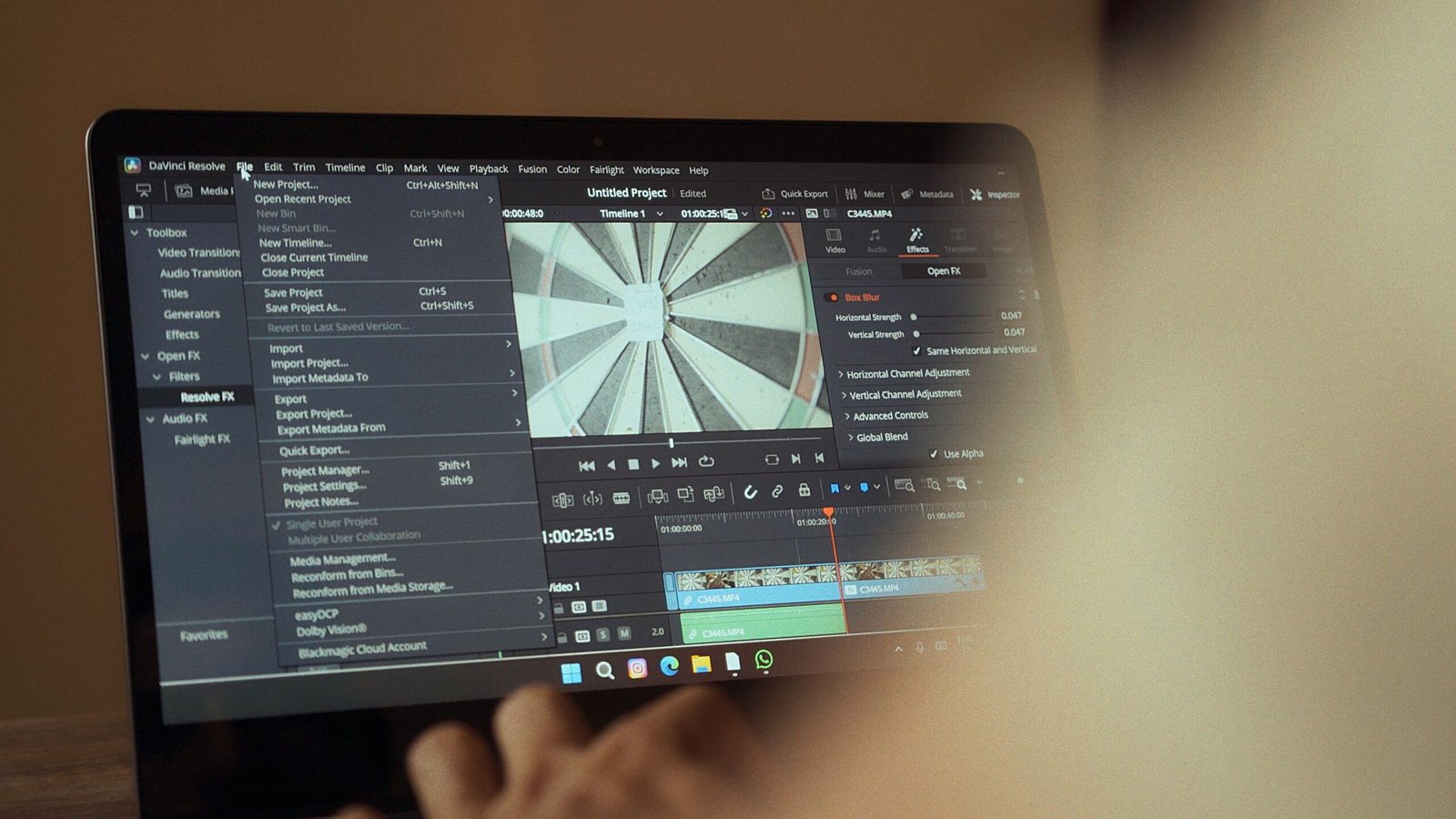
DaVinci Resolve combines editing, color, audio, effects, and finishing in one application. It is popular with users who want professional controls and a strong free entry point, while advanced features vary by edition.
Check current information on the official Blackmagic Design DaVinci Resolve page.
CapCut
CapCut is widely used for fast social and mobile-friendly editing. It emphasizes templates, captions, effects, and quick content creation.
Review current features and platform availability on the official CapCut website.
Descript
Descript is known for transcript-driven editing and is well suited to podcasts, interviews, screen recordings, and talking-head workflows where text-based editing saves time.
See current product details on the official Descript website.
Canva
Canva can be convenient for small businesses and social creators who want templates, brand assets, simple editing, graphics, and resizing in one browser-based workspace.
Check current video tools on the official Canva video editor page.
How to Choose the Right AI Video Editor
| Priority | What to look for |
|---|---|
| Fast talking-head edits | Transcription, text editing, captions |
| Short-form content | Reframing, templates, mobile workflow |
| Professional projects | Timeline depth, color, audio, media management |
| Team marketing | Collaboration, brand tools, review links |
| Low learning curve | Simple interface, presets, guided workflow |
| Long-term growth | Advanced manual controls plus AI assistance |
Do a Real Trial Before Paying
Editing software is difficult to judge from feature lists. Use your own footage.
Test this mini-project
- Import a five-minute talking-head clip.
- Generate a transcript.
- Remove one sentence using text-based editing.
- Create captions and correct errors.
- Clean the audio.
- Create a vertical version.
- Add a title and one graphic.
- Export the final video.
Time the process. The best app is the one that gets you from raw footage to a usable result with the least friction while keeping the quality you need.
AI Video Generation vs AI Video Editing
These are different categories. AI video generation creates new visual or animated content from prompts, images, or source material. AI video editing works with footage you already have.
Some platforms combine both, but beginners should decide which problem they are solving. If your main pain point is editing your own footage faster, a strong editing workflow matters more than text-to-video generation.
Copyright and Content Ownership
Creators should understand the rights associated with music, stock footage, templates, generated assets, and third-party media. An AI tool does not automatically make copyrighted content safe to reuse.
The U.S. Copyright Office provides official information and ongoing materials about copyright and artificial intelligence through its Copyright and Artificial Intelligence initiative.
Keep a source record
For business projects, track where music, stock footage, fonts, images, and generated assets came from and what license or permission applies.
Privacy Considerations
Cloud-based editors may upload footage for processing. That can matter if your video contains customer information, private meetings, unreleased products, children, confidential screens, or other sensitive content.
Review the service’s current privacy and business-data documentation before uploading confidential material. If the footage is sensitive, consider workflows that keep more processing local or use an approved business environment.
A Beginner Editing Workflow
Step 1: Organize the files
Put the project footage, audio, images, music, and graphics into a dedicated folder before editing.
Step 2: Create the rough cut
Use transcript editing or normal timeline tools to remove obvious mistakes and arrange the story.
Step 3: Improve audio
Clean noise, balance speech, and check that music does not overpower the voice.
Step 4: Add visual support
Use B-roll, screenshots, text, and graphics only where they help the viewer understand or stay oriented.
Step 5: Add and review captions
Generate captions, then manually review them.
Step 6: Create platform versions
Reframe or resize only after the main edit is approved.
Step 7: Watch the export
Review the final file from beginning to end before publishing.
Common AI Video Editing Mistakes
- Accepting every automatic cut: pacing needs human judgment.
- Publishing unreviewed captions: transcription errors are common.
- Over-cleaning audio: aggressive processing can sound unnatural.
- Using generated visuals without checking rights: understand licensing and policy.
- Choosing software only for one AI feature: the complete workflow matters.
- Ignoring export speed and formats: delivery requirements matter.
AI Video Editing Checklist
- What type of video do I make most often?
- Do I need text-based editing?
- How accurate are captions on my real audio?
- Can I correct AI edits easily?
- Does the tool support my export formats?
- Can I work offline if needed?
- Where is footage processed?
- Can I manage brand assets?
- Does the tool scale to larger projects?
- Can I export my project or media if I switch tools?
Frequently Asked Questions
What is the easiest AI video editor for beginners?
Tools with transcript editing, templates, automatic captions, and a simple interface are often easier for beginners. The best choice depends on whether you create social clips, tutorials, interviews, or longer videos.
Can AI edit a full video automatically?
AI can create rough cuts, remove pauses, reframe clips, and generate captions, but fully automatic editing often needs human review for story, pacing, accuracy, and brand fit.
Do I need a powerful computer?
It depends on the software and project. Browser-based tools move more processing to the cloud, while professional desktop editors can benefit from stronger hardware, especially for high-resolution video.
Is AI video editing good for YouTube?
Yes, especially for transcription, captions, rough cuts, audio cleanup, and repurposing. Creators still need to make decisions about structure, storytelling, and audience retention.
Conclusion
AI video editing software is useful when it removes repetitive work without taking away your control. For beginners, transcription, captions, audio cleanup, and reframing usually deliver more practical value than complicated generative features.
Test software with your own footage, review every important automatic edit, and choose the tool that makes your real workflow faster. The best editor is the one that helps you publish better work consistently, not the one with the longest AI feature list.