
Best Remote Desktop Software in 2026: Secure Access for Home, Work and IT Support
Remote desktop software is essential for hybrid work, home labs and IT support, but it also creates a powerful path into a computer. A professional 2026 setup should be judged on security, identity, logging and reliability—not only how quickly a screen appears.
Updated September 2026. This guide focuses on current product capabilities and safe configuration rather than claiming one tool is universally best.
Remote desktop is not one use case
There are at least four distinct needs: helping a family member, accessing your own PC while away, supporting customer devices and administering a business fleet. A tool that is perfect for occasional personal access may lack identity controls, logging or deployment features required by IT.

Chrome Remote Desktop
Chrome Remote Desktop is attractive for simple personal remote access because setup is lightweight and works through a Google-account-based workflow. It is a sensible starting point for accessing your own computer or offering basic assistance when you do not need enterprise management features.
Keep the host operating system updated, protect the Google account with multifactor authentication and remove old hosts you no longer use.
TeamViewer, AnyDesk and Splashtop
Commercial remote-support platforms typically add device groups, unattended-access policies, session logging, role-based controls, deployment tooling and support for larger fleets. Pricing and plan boundaries can change frequently, so compare based on technician count, endpoint count and concurrent sessions rather than a headline monthly price.
For regulated environments, verify data residency, audit logging, SSO and conditional-access options before standardizing on a platform.
Windows built-in options
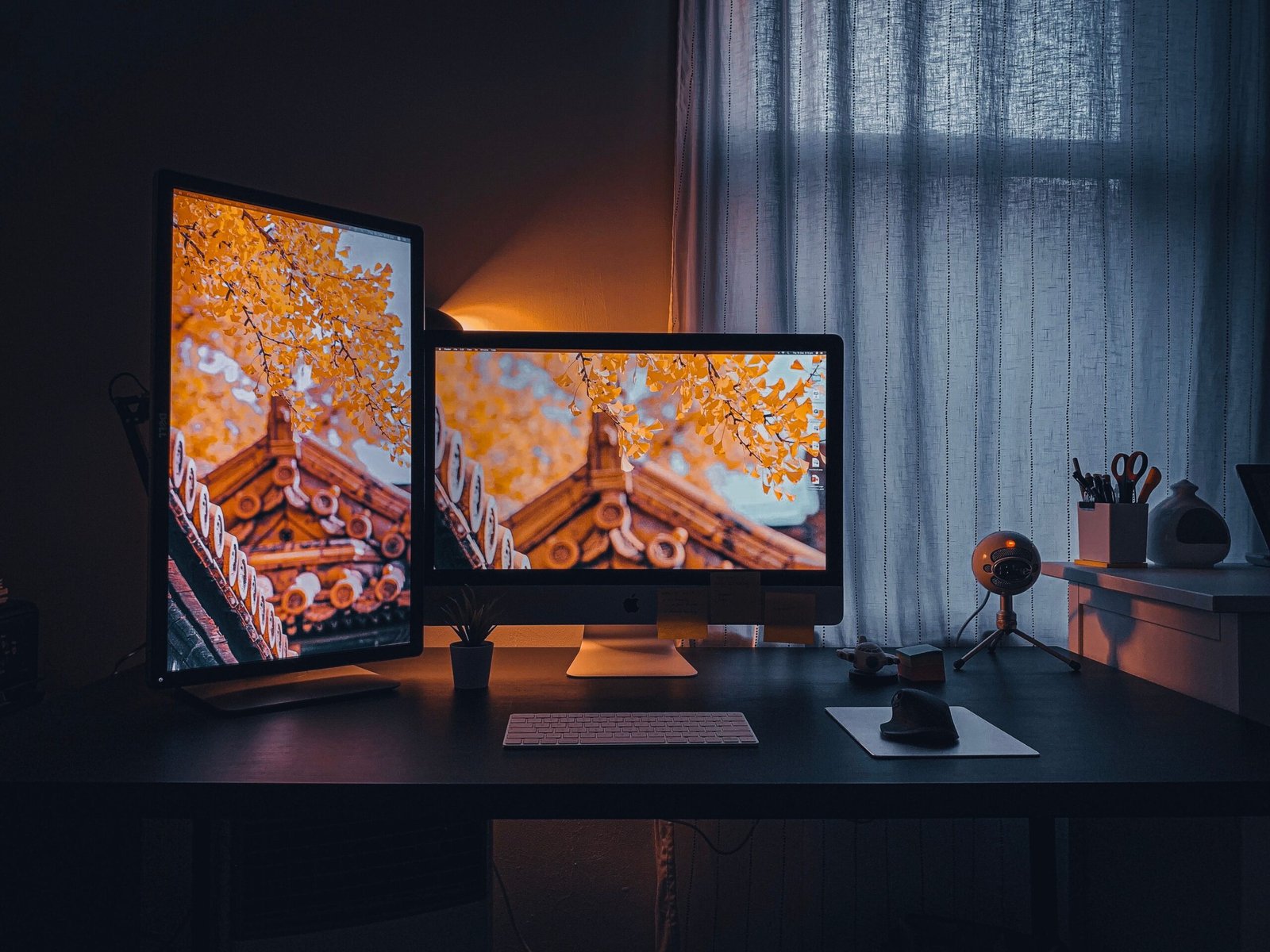
Windows environments can also use Microsoft remote technologies depending on edition and management setup. Check whether you need Remote Desktop Protocol access, Quick Assist, Remote Help or a cloud-managed support product. Do not expose RDP directly to the public internet as a convenience shortcut.
Security checklist before unattended access
- Require MFA on technician accounts.
- Use unique device credentials and revoke former staff promptly.
- Restrict unattended access to approved devices.
- Enable session logs and alerts where available.
- Patch host and client software.
- Avoid sharing permanent access codes in chat or email.
- Use a VPN or managed gateway where your architecture requires it.

Performance: latency matters more than resolution
For office work, responsiveness usually matters more than a perfect 4K image. Reduce visual quality on weak links, prefer wired Ethernet for the host where practical and test clipboard, file-transfer and multi-monitor behavior before relying on the setup in production.
Do not ignore offboarding
Remote-access security often fails when a former employee, contractor or old device retains access. Include remote-access removal in the same offboarding checklist used for email, VPN and cloud accounts. A fast revoke process matters as much as a fast connect process.

Which type should you choose?
For personal access, start with the simplest reputable tool that meets the need. For business use, treat remote access as privileged infrastructure: identity, logs, policy, deployment and offboarding matter as much as the screen-sharing experience.
Official sources checked
Related GetTechDose guides
Frequently Asked Questions
What is a good free remote desktop option?
For simple personal access, Chrome Remote Desktop is a practical starting point. Business support usually needs stronger management and audit features.
Is remote desktop safe over the internet?
It can be when configured with strong identity controls, MFA, patching and restricted access. Avoid exposing RDP directly to the public internet.
What matters most for business support?
Centralized identity, unattended-access policy, logging, technician permissions, deployment and fast revocation when staff change.