
Best Backup Software in 2026: Cloud Backup, Local Copies and the 3-2-1 Rule
A backup is only useful if it can restore the files you actually need. In 2026, the safest personal and small-business strategy still combines local copies, an off-site copy and regular recovery testing instead of trusting one sync folder or one external drive.
Updated September 2026. Pricing below is taken from current official product pages and should be rechecked before purchase.
Backup is different from sync
Cloud sync is designed to keep files consistent across devices. That is convenient, but a deletion or unwanted change can also propagate. Backup is designed around recovery: keeping historical copies or separate versions so you can return to an earlier state after deletion, hardware failure, ransomware or account trouble.
The 3-2-1 rule remains a strong starting point
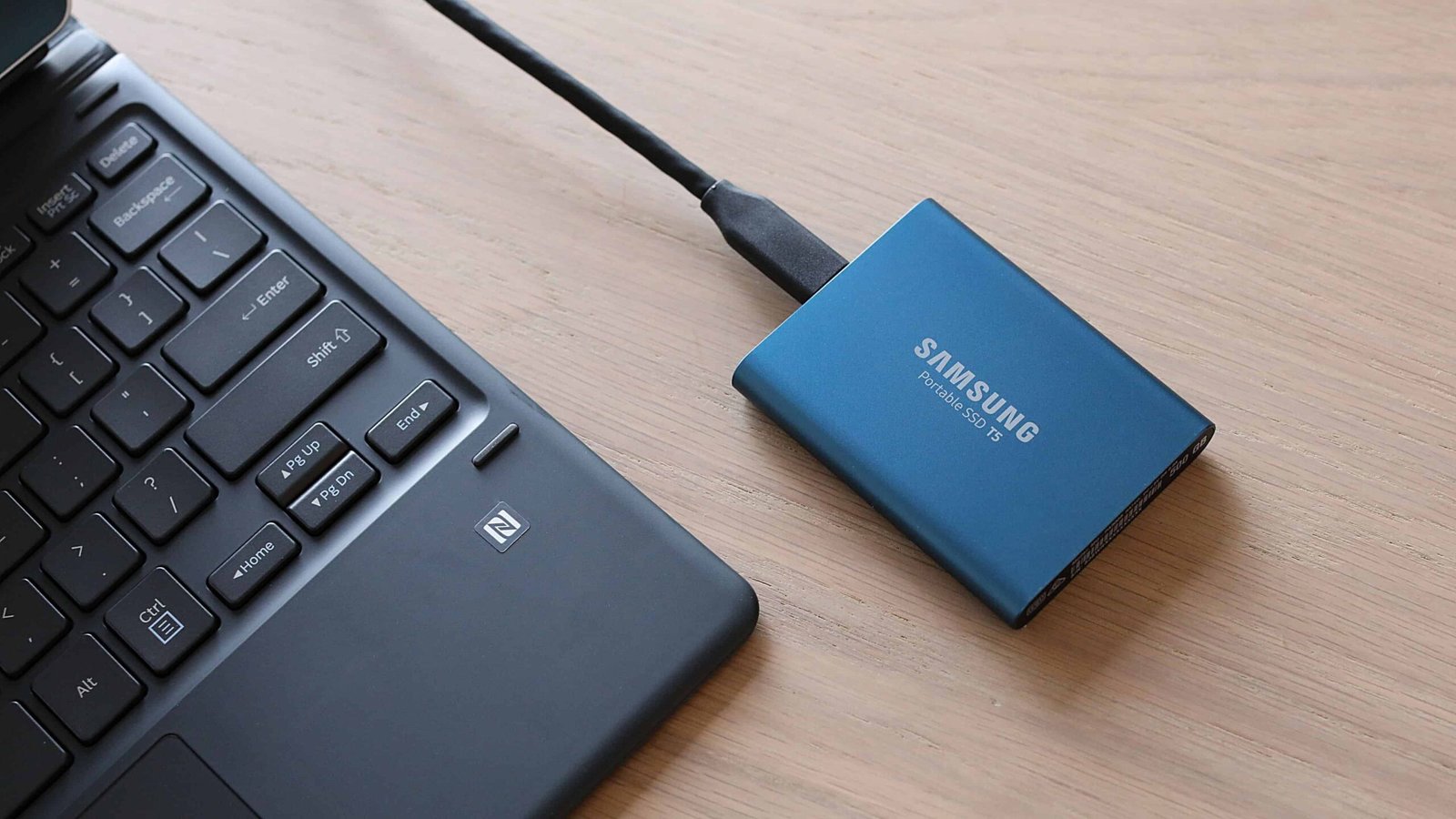
Keep at least three copies of important data, on two different types of storage, with one copy off-site. A practical home setup might be the working copy on the laptop, a local external drive or NAS and an encrypted cloud backup. Small businesses can add immutable or offline copies depending on risk.
Backblaze: simple unlimited computer backup
Backblaze currently lists Personal Backup at $99 per year with unlimited data for one computer. That simple pricing can be attractive for users with large local photo, video or document libraries who do not want to calculate storage tiers.
Check what external drives, retention settings and restore methods your plan supports, and remember that an online backup is not a substitute for a quick local restore when a large amount of data must be recovered.
IDrive: storage quotas across multiple computers
IDrive’s current pricing page lists a free 10 GB plan and Personal at $11.99 per month for 5 TB. It also lists larger personal tiers including 10 TB at $17.99 per month. IDrive can make sense when one account needs to back up multiple computers within a defined storage allowance.
Windows Backup: useful for migration, not a complete backup strategy
Microsoft’s Windows Backup can preserve many important settings, files and app information tied to a Microsoft account and OneDrive. It is useful when moving to a new PC, but users should understand exactly which folders and data types are included. A full recovery plan may still require separate file or image backups.
Local external-drive backup
A USB SSD or hard drive gives fast restores and keeps a copy under your control. The weakness is physical proximity: theft, fire, electrical damage or ransomware can affect the computer and an always-connected drive together.
For important archives, connect the backup drive for the backup job and disconnect it afterward, or use software and storage with versioning and ransomware-resistant snapshots.
What to compare in backup software
- Version history and retention.
- Encryption and account security.
- External-drive and NAS support.
- Restore speed and large-restore options.
- Multiple-computer licensing.
- Ransomware recovery or immutable-copy options.
- Mobile access if needed.
- Clear logs showing failed backup jobs.
Test recovery before you need it
Once per quarter, restore a few files to a temporary folder and open them. At least once per year, simulate a larger recovery of a representative folder. A green “backup completed” message is useful, but it is not proof that every required file can be restored cleanly.

A simple setup for most people
- Keep important working files on the main computer.
- Run an automatic local backup to an external drive or NAS.
- Use a reputable encrypted cloud-backup service for an off-site copy.
- Enable MFA on the backup account.
- Keep recovery codes somewhere separate.
- Test restores regularly.
Official sources checked
Related GetTechDose guides
Frequently Asked Questions
Is cloud sync a backup?
Not by itself. Sync can replicate deletions or unwanted changes. Use a separate backup with version history and recovery controls.
How many backup copies should I keep?
The 3-2-1 rule is a practical baseline: three copies, two storage types and one off-site copy.
Should I leave my backup drive connected all the time?
Automatic backups are convenient, but a permanently connected drive can share some risks with the computer. Consider versioning, snapshots or disconnecting an archive drive after scheduled backups.