USB-C Docking Station Buying Guide 2026: Ports, Displays, Charging and Compatibility Explained
A USB-C docking station can turn a thin laptop into a full desktop setup with monitors, Ethernet, storage, keyboard, mouse, audio, and charging connected through one cable. The problem is that two docks with nearly identical product photos can behave very differently once you connect them to a real laptop.

The difference comes down to standards, bandwidth, display support, charging power, operating-system limitations, and the ports your computer actually supports. This USB-C docking station buying guide for 2026 explains those details in simple language so you can choose a dock that fits your setup instead of buying by port count alone.
USB-C Is a Connector, Not a Guarantee
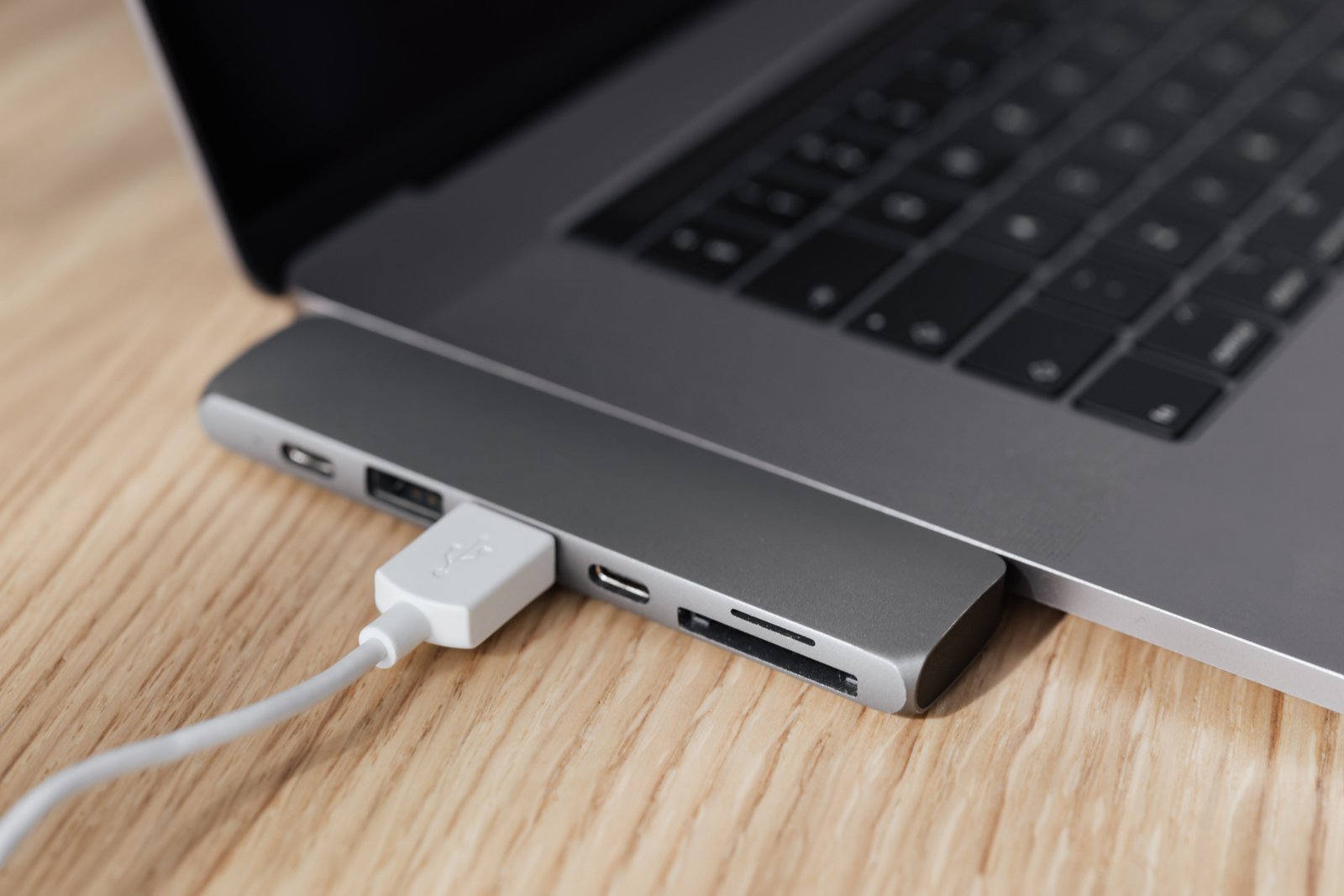
The USB-C shape can carry different technologies. A USB-C port may support data only, charging, DisplayPort video, USB4, Thunderbolt, or some combination. Two laptops with USB-C ports can therefore have very different docking capabilities.
Before shopping, check the laptop manufacturer’s technical specifications for the exact model. Look for USB4, Thunderbolt, DisplayPort Alt Mode, and USB Power Delivery support.
The official USB Implementers Forum is the standards organization behind USB specifications and branding.
Start With the Displays You Want to Use
Monitor support is often the most confusing part of docking. Decide how many monitors you need, their resolution, and their refresh rate before choosing a dock.
One external monitor
Most modern laptops with proper USB-C video support can handle a straightforward single-monitor dock, although maximum resolution and refresh rate still depend on the laptop and dock.
Two or more monitors
Multi-monitor support depends on the host computer, operating system, graphics hardware, and docking technology. Some docks use native DisplayPort transport, while others use technologies such as DisplayLink to create additional displays through software.
High-refresh monitors
A dock advertised for multiple 4K displays may not deliver high gaming refresh rates. If you use 120 Hz, 144 Hz, 165 Hz, or higher, check the exact supported combination instead of assuming HDMI or DisplayPort labels guarantee it.
Know the Difference Between USB-C, USB4 and Thunderbolt
Standard USB-C docks
These are often affordable and work well for office setups. They may provide USB ports, Ethernet, card readers, video outputs, and pass-through charging. Maximum bandwidth varies by the USB data mode supported by the host and dock.
USB4 docks
USB4 can provide much higher bandwidth and more flexible tunneling of data and display traffic than older USB modes. Actual performance still depends on both the host and dock implementation.
Thunderbolt docks
Thunderbolt docks are designed for high-bandwidth data, displays, and device chaining. They are often more expensive but can be a good fit for creators, developers, and users with multiple high-resolution peripherals.
For Thunderbolt information and certified product guidance, see the official Intel Thunderbolt overview.
Charging Power: Do Not Look Only at the Big Number
Many docks accept a high-wattage power adapter, but the laptop does not necessarily receive the full adapter rating. The dock itself uses power for ports and attached devices.
Check three numbers
- The wattage of the dock’s power adapter.
- The maximum power the dock can deliver to the host laptop.
- The charging requirement of your laptop.
A thin ultrabook may be comfortable with a lower charging level, while a high-performance workstation may require more power than a dock can deliver and may still need its original charger under heavy load.
USB Power Delivery Matters
USB Power Delivery allows compatible devices and chargers to negotiate power over USB-C. Modern PD standards support a wide range of device types and power levels, but both ends of the connection must support the required profile.
Use cables rated for the charging and data performance you need. A cable that charges a phone is not automatically suitable for high-speed docking or high-power laptop charging.
How Many USB Ports Do You Really Need?
Count your always-connected devices before buying.
Common desktop peripherals
- Keyboard.
- Mouse receiver.
- Webcam.
- External SSD.
- USB microphone.
- Audio interface.
- Printer.
- Phone cable.
Do not judge only by the number of ports. Check whether they are USB-A or USB-C, their data speed, and whether any are intended mainly for charging.
Ethernet: Useful Even If You Have Fast Wi-Fi
A wired Ethernet port can provide consistent performance for large file transfers, video calls, game downloads, NAS access, and office networks.
Gigabit Ethernet is common, while some newer docks offer multi-gigabit networking. If you need speeds above 1 Gbps, confirm that your router, switch, cabling, dock, and computer all support the higher link rate.
SD and microSD Card Readers
Photographers, videographers, drone users, and creators may benefit from built-in card readers. Check the supported card standard and real transfer speed rather than assuming every SD slot performs the same.
If you frequently move large photo or video files, a faster dedicated card reader may outperform a basic reader built into a budget dock.
Audio Ports and Headsets
Some docks include a 3.5 mm headset jack. Check whether it supports microphone input as well as headphones if you use a wired headset.
For higher-quality microphones, studio headphones, or speakers, a dedicated USB audio interface may be more reliable than the dock’s built-in audio.
DisplayLink vs Native Display Support
DisplayLink technology can provide additional displays through USB data and is useful for systems that have limited native multi-monitor support. It requires software and uses system resources to encode display output.
DisplayLink is useful for
- Office productivity.
- Spreadsheets and dashboards.
- Extra displays for email or chat.
- Some laptops with restrictive native monitor support.
Native display output is often preferred for
- Gaming.
- Color-sensitive creative work.
- Very high refresh rates.
- Low-latency video workflows.
Choose based on the workload instead of assuming one technology is universally better.
Mac Compatibility Requires Extra Attention
Some Mac models support a different number of external displays than others. A dock cannot always override limits built into the computer’s hardware and operating system.
Before buying, check Apple’s technical specifications for your exact Mac model and the dock manufacturer’s Mac compatibility notes. If a dock uses DisplayLink, confirm that you are comfortable installing and maintaining the required software.
Windows Compatibility
Windows laptops vary widely. Business laptops may support Thunderbolt or USB4 with strong docking features, while budget systems may use USB-C mainly for data and charging.
Look for the display or lightning-style icons near the port, but rely on the official product specification rather than icons alone.
Chromebook Compatibility
Many USB-C docks work well with Chromebooks for basic displays, USB devices, charging, and networking, but feature support varies. Check Google’s Chromebook documentation and the dock manufacturer’s compatibility list if your setup includes multiple monitors.
Docking Station vs USB-C Hub
| Feature | USB-C hub | Docking station |
|---|---|---|
| Portability | Usually compact | Usually desk-focused |
| Power supply | Often pass-through | Often dedicated adapter |
| Number of ports | Moderate | More extensive |
| Multi-monitor support | Basic to moderate | Often stronger |
| High-speed storage | Varies | More premium options |
| Best use | Travel or light desk use | Permanent workstation |
Cables Can Limit the Entire Setup
A dock is only as capable as the cable connecting it to the laptop. The USB-C connector shape does not tell you the cable’s bandwidth or charging capability.
Use the included host cable when possible
Manufacturers often include a cable chosen for the dock’s full specification. Replacing it with a random longer cable can reduce display, data, or charging performance.
Heat Is Normal, but Stability Matters
High-speed docks can feel warm because they manage power, data, video, networking, and multiple controllers. Warmth alone does not indicate a defect.
What matters is stability. A good dock should not repeatedly disconnect storage, flicker monitors, drop Ethernet, or reconnect USB devices under normal use.
How to Test a Dock During the Return Window
- Connect every monitor you plan to use.
- Run monitors at the intended resolution and refresh rate.
- Connect Ethernet and run a sustained transfer.
- Connect your external storage.
- Test webcam and microphone during a video call.
- Charge the laptop while using the setup heavily.
- Wake the laptop from sleep several times.
- Disconnect and reconnect the single host cable.
- Test after operating-system updates.
- Check for firmware updates from the dock manufacturer.
Common Docking Station Mistakes
- Buying by USB-C shape: check the laptop’s actual capabilities.
- Assuming all HDMI ports support the same refresh rates: verify combinations.
- Ignoring host charging wattage: adapter rating is not the same as laptop delivery.
- Using the wrong cable: bandwidth and power ratings matter.
- Assuming a dock removes Mac display limits: check the exact model.
- Connecting a fast SSD to a slow port: identify port speeds.
Buying Checklist
- Laptop model and operating system.
- USB-C, USB4, or Thunderbolt support.
- Number of monitors.
- Resolution and refresh rate for each monitor.
- Required charging power.
- Number and type of USB ports.
- Ethernet speed.
- Card-reader requirements.
- Audio requirements.
- Desk or travel use.
- Included power adapter.
- Warranty and firmware support.
Frequently Asked Questions
Can any USB-C laptop use a docking station?
Not every feature is guaranteed. The laptop’s USB-C port must support the data, display, and charging capabilities required by the dock.
Do I need Thunderbolt for dual monitors?
Not always. Some USB-C docks support multiple displays through native DisplayPort modes or DisplayLink. The correct choice depends on the laptop and display requirements.
Can a dock charge a gaming laptop?
It may provide partial or normal-use charging, but many gaming laptops require more power than common USB-C docks can deliver under heavy load. Check the laptop’s charging requirements.
Is a docking station better than a hub?
A dock is usually better for a permanent multi-device workstation, while a hub is usually smaller and more portable. The right choice depends on your setup.
Conclusion
A USB-C docking station should be chosen from the laptop outward. Confirm the computer’s port capabilities, decide exactly what displays and peripherals you need, then match the dock to those requirements.
Do not buy by connector shape or port count alone. Display support, host charging, bandwidth, cable quality, and operating-system compatibility are what determine whether a dock feels seamless or frustrating every day.